
FBI issues new ransomware warning

FBI issues new ransomware warning

When was the last time you stopped to think, “What would actually happen to my business if all our files were suddenly locked away?”

That’s exactly the nightmare scenario the FBI is warning about right now. They’ve issued a new security alert about a nasty ransomware group called Interlock.

If you haven’t heard of them before, don’t worry, this is what you need to know…

They only appeared in September 2024. But they’re already making a name for themselves by going after businesses and infrastructure in North America and Europe.

And Interlock is in it for the money. Their playbook looks like this: Break into your systems, quietly steal sensitive data, then encrypt everything so you can’t access it. Finally, they hit you with a ransom demand, usually giving you a short deadline (about four days) to pay up, or they’ll dump your files onto the dark web for anyone to see.

This “double-extortion” method has become standard practice among ransomware gangs, but Interlock is proving very aggressive.

The way they break in is smart. They set up fake browser or security updates, booby-trapped websites, and other tricks designed to make you click without thinking. Once they’re inside, they drop all kinds of malicious tools that let them spy, steal passwords, move through your network, and lock down files.

They’re not picky about systems either. They’ve developed tools to hit both Windows and Linux machines, which means pretty much any business could be a target.

Now, you might be wondering what this means for your business. The reality is that ransomware doesn’t just happen to big companies you read about in the news. Small and medium sized businesses are prime targets because attackers know security budgets are smaller, and they often see them as an easier win.

Imagine losing access to your client files, financial data, or critical day-to-day systems. Even if you manage to recover, the reputational damage can be just as costly as the downtime.

So, what can you do?

The FBI’s advice is clear:

  • Keep your systems patched and updated so attackers can’t exploit old flaws.
  • Make sure multi-factor authentication (that’s the extra code you enter after your password) is turned on wherever possible. It’s one of the simplest ways to block them.
  • Use web filtering and firewalls to keep malicious sites out.
  • Segment your network so if one part gets infected, the whole business doesn’t go down.
  • Most importantly, invest in security tools that can detect and stop suspicious behaviour before it spreads.

It might sound technical. But acting now is far less painful (and cheaper) than dealing with the aftermath of an attack. The FBI doesn’t issue these warnings lightly. Interlock isn’t going away anytime soon, and this is the perfect moment to make sure your business isn’t their next victim.

Need help keeping your business protected? Get in touch.    
New: Windows 11 AI Agent helps with Settings

New: Windows 11 AI Agent helps with Settings

  Have you ever gone hunting through your computer’s Settings app, clicking through menu after menu, just to make one small change?

It’s frustrating, isn’t it?

You know the option is in there somewhere… but where?

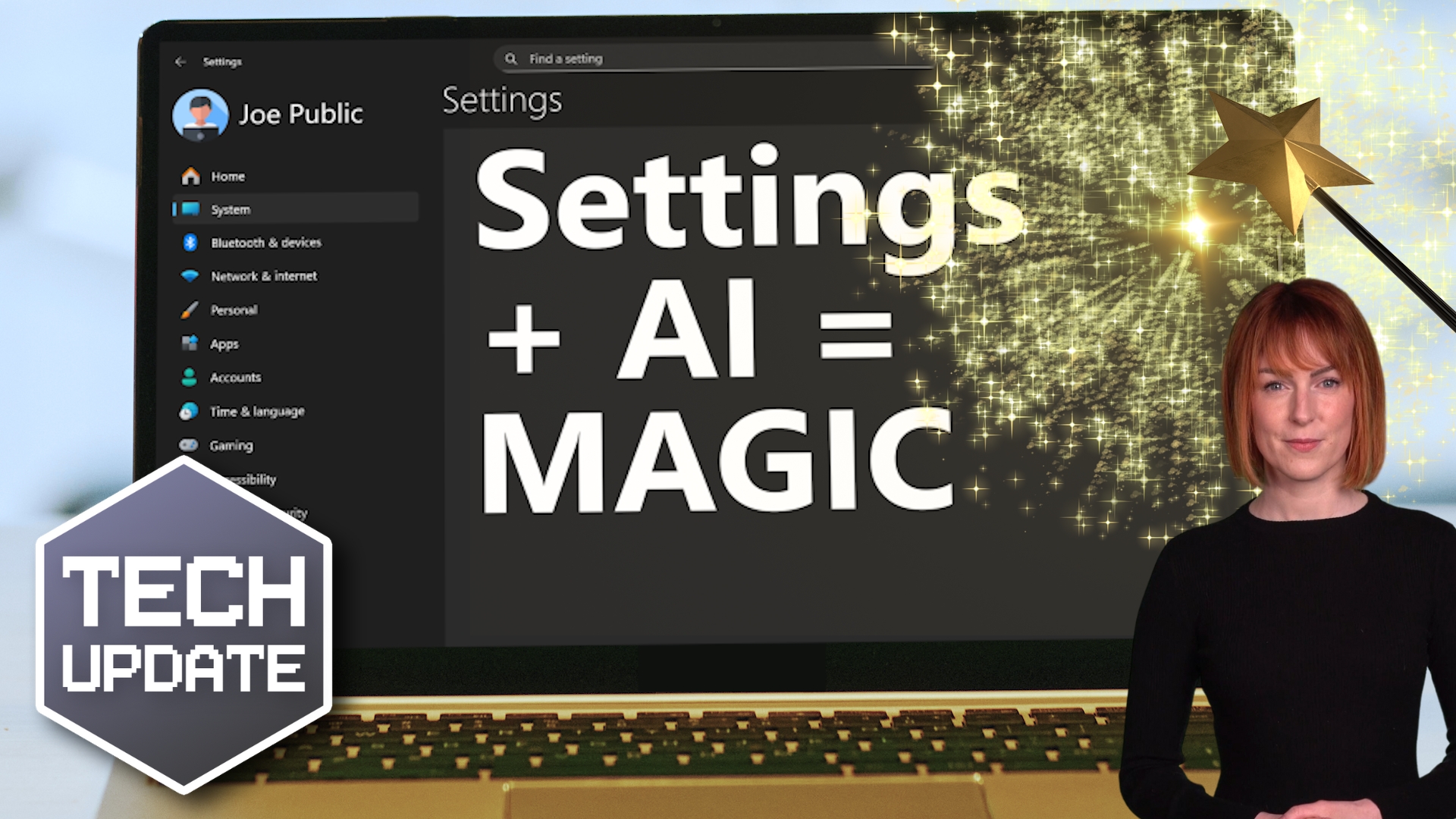
Microsoft is working on making that experience a lot easier in Windows 11 by adding something new: An AI Agent built directly into the Settings app.

This isn’t a chatbot like Copilot that you open separately. Instead, it’s woven right into the search box inside Settings.

You don’t need to know the exact name of the setting anymore. You can just type what you want in plain, natural language. Something like “make the screen brighter” or “turn on voice control”. And the AI will find the right setting or even apply the change for you.

What’s clever about this is that it all happens locally on your device. Which means the AI isn’t sending your requests off to the cloud or sharing your information anywhere.

It’s powered by a small, fast language model built into the system. The results come back almost instantly. Microsoft has tuned it to focus on the settings people use most, so you’re not scrolling through a long list of irrelevant suggestions.

This might sound like a small tweak. But think about how often your team wastes time figuring out how to enable a feature or fix a basic issue.

Instead of waiting for IT support or Googling instructions, they can now ask the AI Agent in plain English and get an answer right there in seconds.

That means less downtime, fewer interruptions, and employees who feel more confident about using their PCs.

This new feature is still in testing for Copilot+ PCs through the Windows Insider Program. But it’s a glimpse of where Windows is heading: Making technology easier, faster, and more helpful for everyone.

It’s a genuine time saver that can make everyday tasks run more smoothly. And when your people can get back to work quickly without fighting with their computer, that’s a win for productivity and morale.

If you’re looking at upgrading to Copilot+ PCs or just want some advice on the right devices for your team, I’d be happy to help. Get in touch.   

More good news for accessibility in Windows 11

More good news for accessibility in Windows 11

Have you ever opened a document or presentation and realised half the information is locked away in an image or graphic you can’t quite make sense of?

Maybe it’s a complicated chart, or a photo with crucial details, but no one thought to add a description.

Microsoft is working on something that could remove moments like that. Especially for people with accessibility needs.

It’s testing a new feature in Windows 11 called Describe Image, and it’s powered by local AI built right into your PC.

On Copilot+ PCs (the new generation of Windows devices that use AI directly on the computer), you’ll find Describe Image in the Click to Do menu. When you select it, your PC will instantly generate a detailed description of whatever image, chart, or graph you’re looking at.

The first time you try it; your computer sets up the AI models it needs. After that, the whole process runs locally, meaning no images or data are sent anywhere else. The descriptions stay private and secure on your own machine.

Right now, this is being rolled out to Windows Insiders on the Dev Channel who have Snapdragon-powered Copilot+ PCs. But Microsoft has said AMD and Intel Copilot+ PCs will also get it soon.

On first thoughts this might not seem like a big deal. But imagine a team member with a visual impairment being able to understand a complex graph in seconds, without waiting for someone else to explain.

Or picture a busy employee quickly skimming through a report and getting an instant overview of what’s in a set of images, without having to open another app or hunt down the right person to ask.

Microsoft is making technology work better for everyone… removing barriers and helping people be more productive.

Accessibility features like this aren’t about compliance or ticking a box. They have the potential to make a real difference to people’s day-to-day work.

When your employees can access information easily, they can do their jobs better, collaborate more smoothly, and feel included. That’s good for them, and it’s great for your business too.

Windows 11 keeps quietly adding these thoughtful improvements. Describe Image is another step toward a world where technology fits around people, not the other way around.

If you’re already exploring Copilot+ PCs, this is one more reason to be excited about what’s coming next. And if you need help selecting new devices that are the right fit for your business, my team and I can help. Get in touch.   

Better battery life for Windows 11 laptops

Better battery life for Windows 11 laptops

When was the last time you finished a busy workday and still had plenty of battery left on your laptop?

Feels like wishful thinking, right?

Microsoft knows this, because it’s testing out a new feature for Windows 11 that could give your laptop a noticeably better battery life.

As someone who works with business tech every day, I think this could be a big step forward for businesses everywhere.

The feature is called adaptive energy saver.

Normally, Windows only switches on its energy‑saving mode when your battery level gets low. And you can set what “low” means in your settings. But adaptive energy saver takes a much smarter approach.

Instead of waiting for the battery to run down, your laptop will watch what you’re doing. And if you’re only carrying out light tasks like browsing the web, reading emails, or working in Word, it quietly switches on energy saver in the background.

From what Microsoft has shared so far, this doesn’t affect your screen brightness. Which is good news, because nobody wants their screen dimming and brightening all day.

Instead, it seems to focus on gently slowing down components like your processor and graphics chip when they’re not working hard. Those are two of the biggest power drains in a laptop. Easing off on them could mean you get a lot more time before you need to hunt for a charger.

It’s not switched on by default. You’d need to turn it on yourself in your laptop’s settings. And of course, not every test feature makes it to the final version of Windows 11, but this one feels like a no‑brainer to me.

The benefits for businesses are obvious. Your people can work for longer between charges, whether they’re in meetings, out visiting clients, or working from a coffee shop for the afternoon.

Fewer frantic dashes for a plug socket means fewer interruptions and less stress.

And over time, better battery efficiency could even help you extend the lifespan of your laptops by reducing how often they’re run down and charged up again.

Right now, adaptive energy saver is being tested in the Canary channel, which is where Microsoft tries out ideas before releasing them more widely.

I spend a lot of time looking for small changes that add up to a big difference for productivity. This is exactly the sort of improvement that does just that. It’s early days, but if Microsoft rolls this out, Windows 11 laptops could soon feel like they’ve had a major upgrade without you having to buy a thing.

If it’s time to upgrade your devices and you need expert guidance, get in touch.