
Windows 11’s new focus on efficiency

Windows 11’s new focus on efficiency

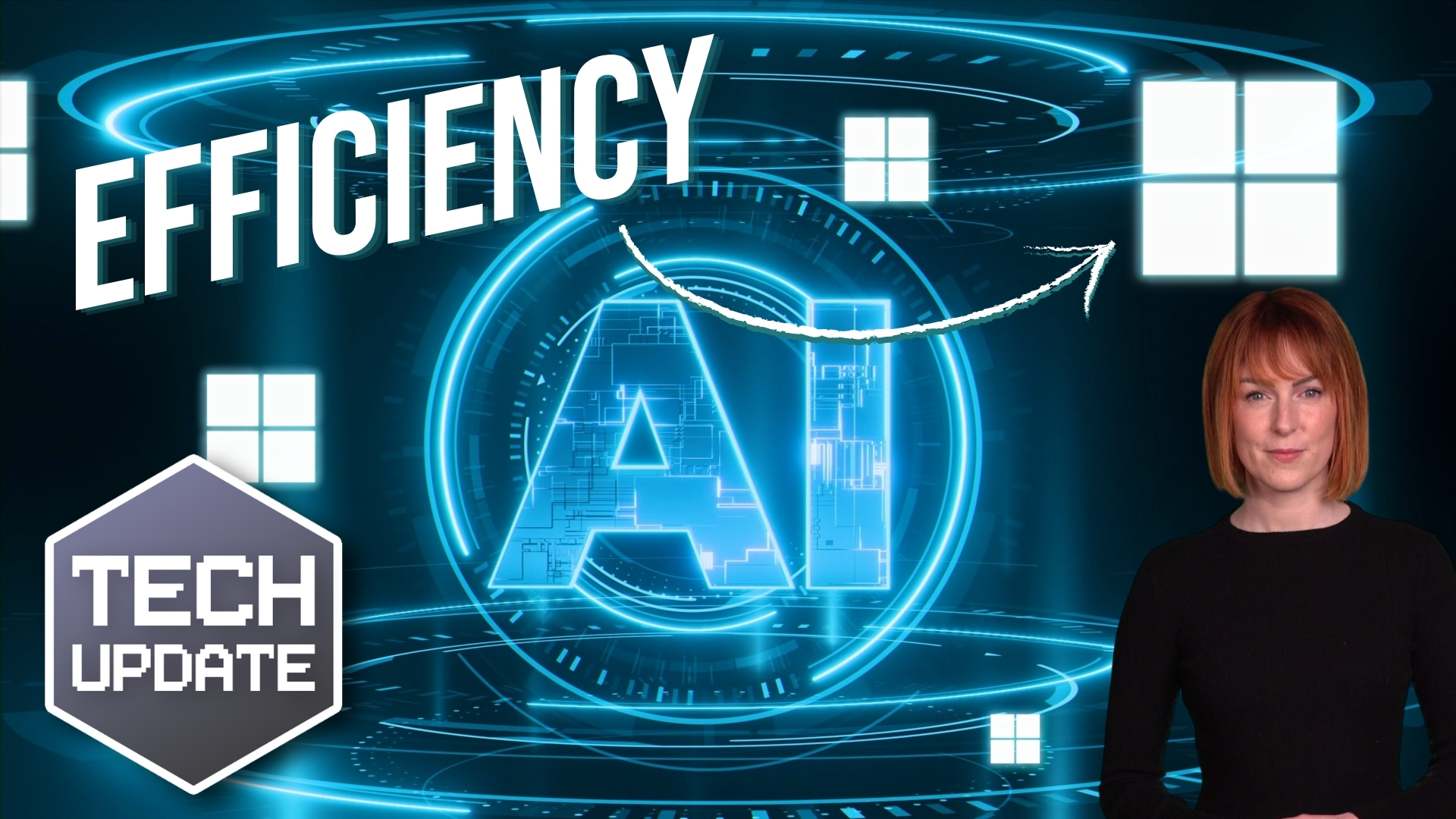
For the past year or so, it’s felt like every Windows update came with three new AI features attached.

Some of them are genuinely useful. Some feel like they’re there because they can be.

So it’s interesting to see Microsoft take a slightly different tone with recent Windows 11 preview updates. 

Instead of cramming in more AI, the focus seems to be on something far less flashy: Making Windows smoother, faster and less irritating to use.

And as someone who works with businesses using Windows every day, I’m quite pleased about that.

Let’s start with something simple. You’ll soon be able to run a network speed test directly from the taskbar. 

If your internet suddenly feels slow, you won’t need to open a browser and search for a speed test site. You can check performance straight from Windows.

For a small or medium sized business, that’s practical. 

If a member of staff says, “The system’s crawling”, you can quickly see whether it’s the connection or something else.

There are also small but welcome tweaks to how apps behave on the taskbar. 

If you’ve ever had multiple windows of the same app open, for example, several Word documents, you might have noticed them being tucked away awkwardly into an overflow area. 

Now it makes better use of the space available, so things feel less cluttered and easier to manage.

Performance improvements are another key area. 

Microsoft has optimised how Windows resumes from “sleep” mode. 

Sleep mode is what happens when you close your laptop lid or leave your PC idle. It goes into a low-power state but keeps your work ready to go. 

If you’ve ever opened your laptop in a meeting and waited that slightly uncomfortable few seconds for it to wake up, this update is designed to make that process feel snappier.

That might not sound dramatic, but in a business setting, small delays add up. A faster resume means fewer awkward pauses and less frustration.

There’s also a subtle shift in how Microsoft is handling AI. 

Instead of pushing it everywhere, they’re adding more control. For example, if your webcam has automatic AI framing, where it tries to zoom and follow your face during calls, you’ll have manual controls to adjust pan and tilt in settings. 

If you’ve experienced the camera zooming in at the wrong moment, that’s a welcome change.

Other updates are less glamorous but still useful. 

The Storage Settings page now scans faster when looking for temporary files, making it easier to free up space. 

The Windows Update page responds more quickly when you check for updates. You can even set modern image formats like .webp as your desktop wallpaper. 

Small details, but they improve day-to-day usability.

For small and medium sized businesses, reliability and responsiveness matter more than experimental features. 

If Windows feels quicker, cleaner and less intrusive, your team works more smoothly. And that’s where real productivity happens.

These updates are rolling out gradually, so you may not see everything immediately, but it won’t be long. 

If you’d like to learn what other Windows features could give your team a productivity boost, I can help. Get in touch.
Is data security your top priority?

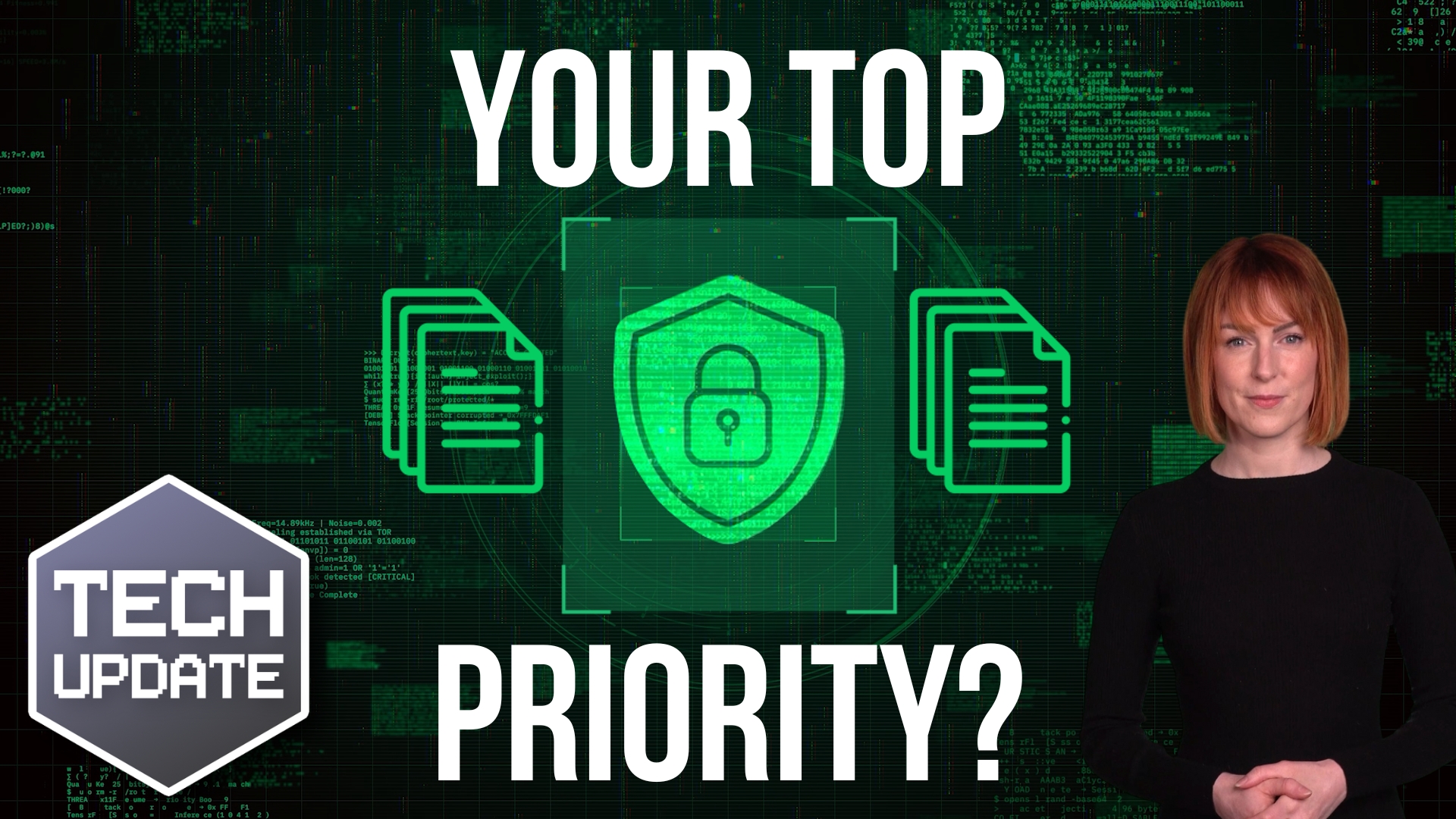
Is data security your top priority?

There’s an interesting disconnect happening in the business world right now.

Most IT leaders say data security is their number one concern when upgrading or modernizing systems. 

In fact, nearly seven in ten rank it at the top of the list. 

Yet only around a third say they feel extremely confident they would pass their next regulatory audit.

That’s a big confidence gap.

As a business owner, you might not describe what you’re doing as modernizing hybrid infrastructure, but that’s effectively what’s happening in most companies. 

Over the years, you’ve added cloud software. Maybe Microsoft 365, cloud accounting, CRM systems, file sharing platforms. 

At the same time, you may still rely on older systems or servers that have been in place for a long time.

That mix is completely normal. But it’s also where things get complicated.

When data lives in multiple places, it becomes harder to answer simple but important questions. 

  • Who has access to what? 
  • How does information move between systems? 
  • Are old platforms still holding sensitive data? 
  • Are access permissions regularly reviewed?

None of this feels dramatic day to day. Everything works. The team logs in. Emails get sent. Files get shared. But under the surface, complexity builds up.

The research also highlighted another pressure point: Many organizations still rely on legacy systems for critical operations, and more than half are struggling to find people with the right skills to manage today’s technology properly. 

That combination makes it harder to feel fully in control.

Then there’s AI.

Lots of businesses are exploring AI tools to improve efficiency, detect fraud, or streamline processes. That can be a positive step.

But AI depends on clean, well-managed, accessible data. If your data security foundations aren’t strong, adding AI can amplify the problem.

From where I sit, the key issue isn’t whether security is important. Everyone agrees it is. 

The real question is whether your current setup has kept pace with how your business has evolved.

Could you clearly explain where your sensitive data is stored?


Are you confident that access rights reflect how your team works today, not how it worked three years ago?


Would an external audit feel manageable rather than stressful?

These are business risk questions.

Good security is about understanding your own environment well enough to trust it. 

And if you’re not completely sure how solid the foundations are, that’s usually a sign it needs some attention.

My team and I can help you with that. Get in touch.

Teams update: No more accidental quitting

Teams update: No more accidental quitting

Have you ever accidentally left a Teams meeting?

You go to click something, maybe Share to present your screen, and suddenly you’re staring at your desktop while everyone else is still mid-conversation.

Awkward.

For a long time, that was a perfectly believable excuse. 

The Quit option in Microsoft Teams has caught out plenty of people, especially in fast-paced meetings where you’re clicking quickly between controls.

Enough people complained that Microsoft has finally decided to fix it.

Microsoft said it would introduce an alternative way to quit a meeting using the system tray (that’s the small area down by the clock on your Windows desktop). And it’s delivered. 

The idea is simple: Move Quit away from the main cluster of meeting controls so you’re less likely to click it by mistake.

If you use the desktop version of Teams, you should already see the change automatically. There’s nothing your IT team needs to switch on.

It’s not a dramatic update. 

But it’s one of those small improvements that removes daily friction.

Now, just to manage expectations, this doesn’t completely eliminate the risk of clicking the wrong thing. 

If you’re aiming for “Share” and misclick “Leave”, you could still drop out of the meeting. We’re not living in a perfect world just yet.

However, there’s a useful setting many people don’t know about. 

Inside Teams, if you go into Settings, then General, there’s an option to turn on a confirmation message before leaving a meeting. 

That extra “Are you sure?” step can save you from disappearing at exactly the wrong moment.

While we’re on the subject of small-but-helpful changes, Microsoft is also rolling out another update that will let you hide the meeting toolbar during calls. 

That means more screen space and fewer distractions while you’re presenting or focusing on content. 

If your people rely on Teams every day, these incremental updates reduce embarrassment, reduce disruption, and make virtual meetings feel just a bit more polished.

And if you’ve ever vanished mid-sentence from an important call, you now have one less excuse.

If you’d like to learn about other small-but-mighty features that could help everyday work, get in touch.

Is this the top productivity app in Windows 11?

Is this the top productivity app in Windows 11?

If you use Windows every day for work, I’ve got a question for you.

What’s the one app you couldn’t live without?

Microsoft’s latest marketing says the answer should be Microsoft Copilot. 

They’re calling it the number one productivity app in Windows 11, ahead of tools like File Explorer, Microsoft To Do and even the trusty Snipping Tool.

That’s quite a statement.

Now, I do understand why they’re saying it. 

There’s a big push around AI PCs at the moment, and Copilot is front and centre of that story. 

It sits on your desktop and promises to help you think, plan and get things done. You can ask it to summarise long emails, turn messy notes into a checklist, draft messages, or help you organise ideas for a project.

And yes, that can be genuinely helpful.

If you’ve ever opened your inbox to find a long, winding email thread, being able to pull out the key points quickly is a relief. 

If you’ve scribbled half-formed ideas into a document, having something help you structure them can save time.

But here’s where I struggle with the “number one” label.

When I look at how most businesses work, the heavy lifting is done by other tools. 

File Explorer is used constantly. It’s how you find client documents, move files, organise folders and keep everything in order. You don’t think about it much, but you rely on it all day.

The same goes for task apps like Microsoft To Do, or simple tools that let you grab screenshots and share information quickly. 

They’re not flashy. They don’t get keynote speeches. But they’re woven into the fabric of your working day.

Copilot feels different. It’s more like an assistant sitting alongside those tools. It helps you process information and draft content, but it doesn’t replace the core systems underneath.

I suspect this ranking says more about Microsoft’s strategy than about real-world usage. They want AI to be seen as the future of productivity, so it makes sense to position Copilot at the top of the list.

From a business owner’s perspective, though, the more useful question isn’t “What does Microsoft say is number one?” It’s “Where do we waste time?”

If your team spends hours writing, summarising or planning, Copilot could make a noticeable difference. 

If the real problem is disorganised files, unclear processes or too many manual steps, then no AI assistant is going to fix that on its own.

AI is becoming part of everyday work, and that’s not a bad thing. Just don’t let the marketing decide what productivity looks like in your business. 

The best tool is still the one that solves your biggest daily headache.

If you want to know which tools could help your business best, I can help. Get in touch.

Don’t trust AI with this security essential

Don’t trust AI with this security essential

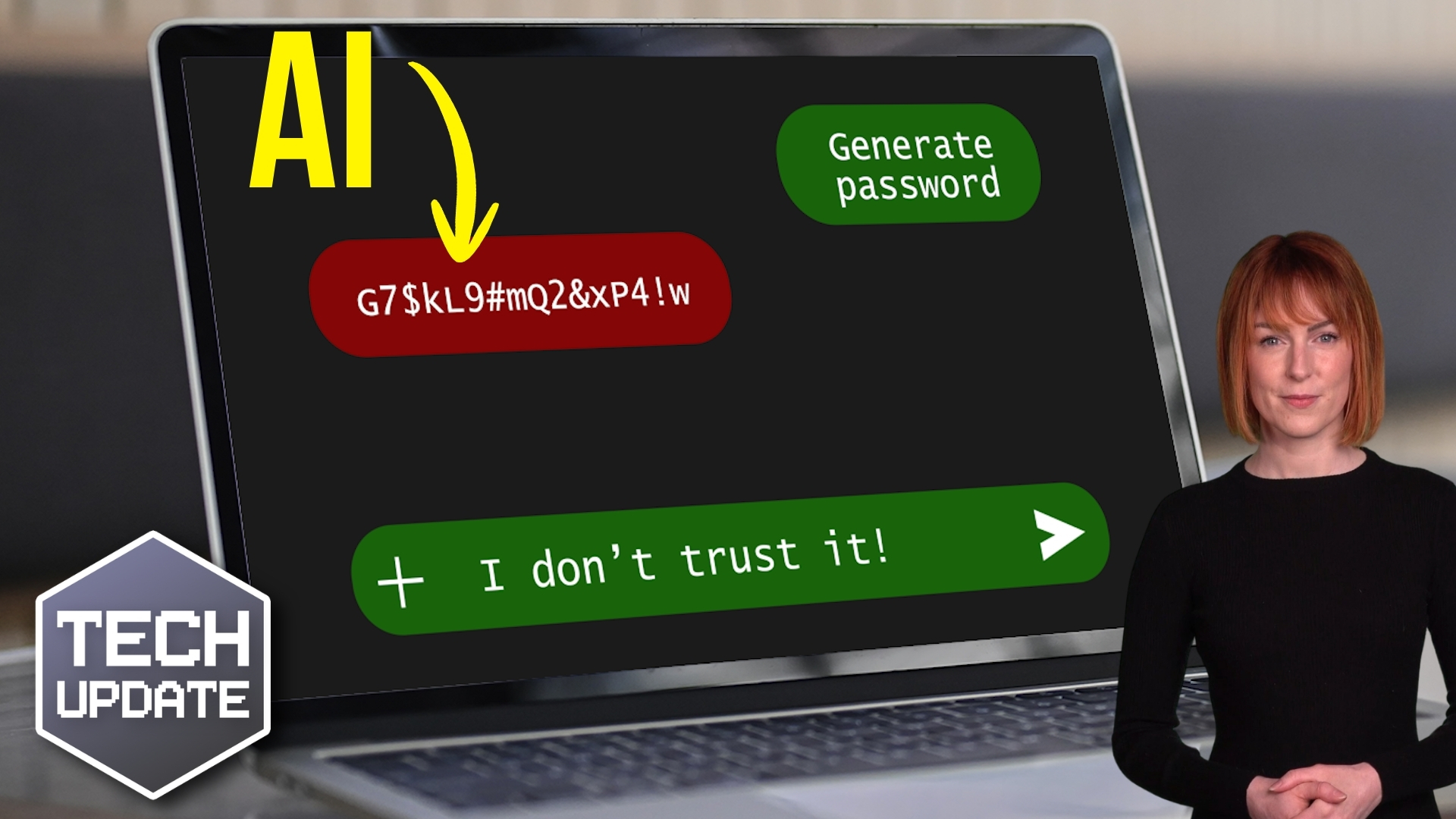
Let me start with a question: If you needed a strong password, would you ask AI to generate one for you?

It sounds reasonable enough. 

Tools like ChatGPT and Copilot can write reports, draft emails and even create bits of code. Asking them for a 16-character password packed with symbols and numbers feels like a smart shortcut.

But you might want to rethink that. 

Researchers recently tested AI tools by asking them to generate secure passwords. 

On the surface, the results looked great. Long strings of mixed-case letters, numbers and symbols. 

When checked using online password strength meters, they scored highly. Some tools even suggested it would take centuries to crack them.

But when those passwords were analysed properly, a different picture emerged.

AI systems are powered by something called a large language model, or LLM. That means they’re trained to predict what text should come next. They’re brilliant at producing text that looks natural and plausible.

What they are not designed to do is create true randomness.

And strong passwords rely on randomness.

When researchers examined dozens of AI-generated passwords, they found repeating patterns. Some passwords were duplicates. Many followed very similar structures. 

Interestingly, none of them contained repeating characters. 

That might sound like a good thing, but real randomness often includes repetition. The absence of it suggests the password is following learned rules rather than being generated unpredictably.

The researchers measured something called “entropy”, which is a technical way of describing how unpredictable something is. 

AI-generated passwords scored far lower than a genuinely random 16-character password should. 

That means they could be much easier to crack using a brute-force attack, where attackers try huge numbers of combinations very quickly.

Online password checkers don’t catch this because they only look at visible complexity. 

They see symbols and numbers and assume it’s secure. They don’t account for the hidden patterns created by AI.

Even newer models like Gemini 3 Pro have issued warnings when asked to generate passwords, advising people not to rely on chat-generated credentials for sensitive accounts. 

That should tell you something.

If you want properly secure passwords, use a password manager with a built-in generator. 

These use cryptographic randomness, in other words, mathematical processes specifically designed to create unpredictable results.

AI is an excellent productivity tool. But when it comes to security essentials like passwords, it’s the wrong tool for the job.

If you’d like help choosing the right password manager for your business, get in touch.